
- 01
Share the link
The Overview has a copy button for your booking address. It works in a text message, an Instagram bio, a QR code on the counter — anywhere a link goes.
- 02
Embed it in your website
Developers → Embed on our site has a one-line snippet that drops the same booking page into any website as a widget.
- 03
Shape the steps
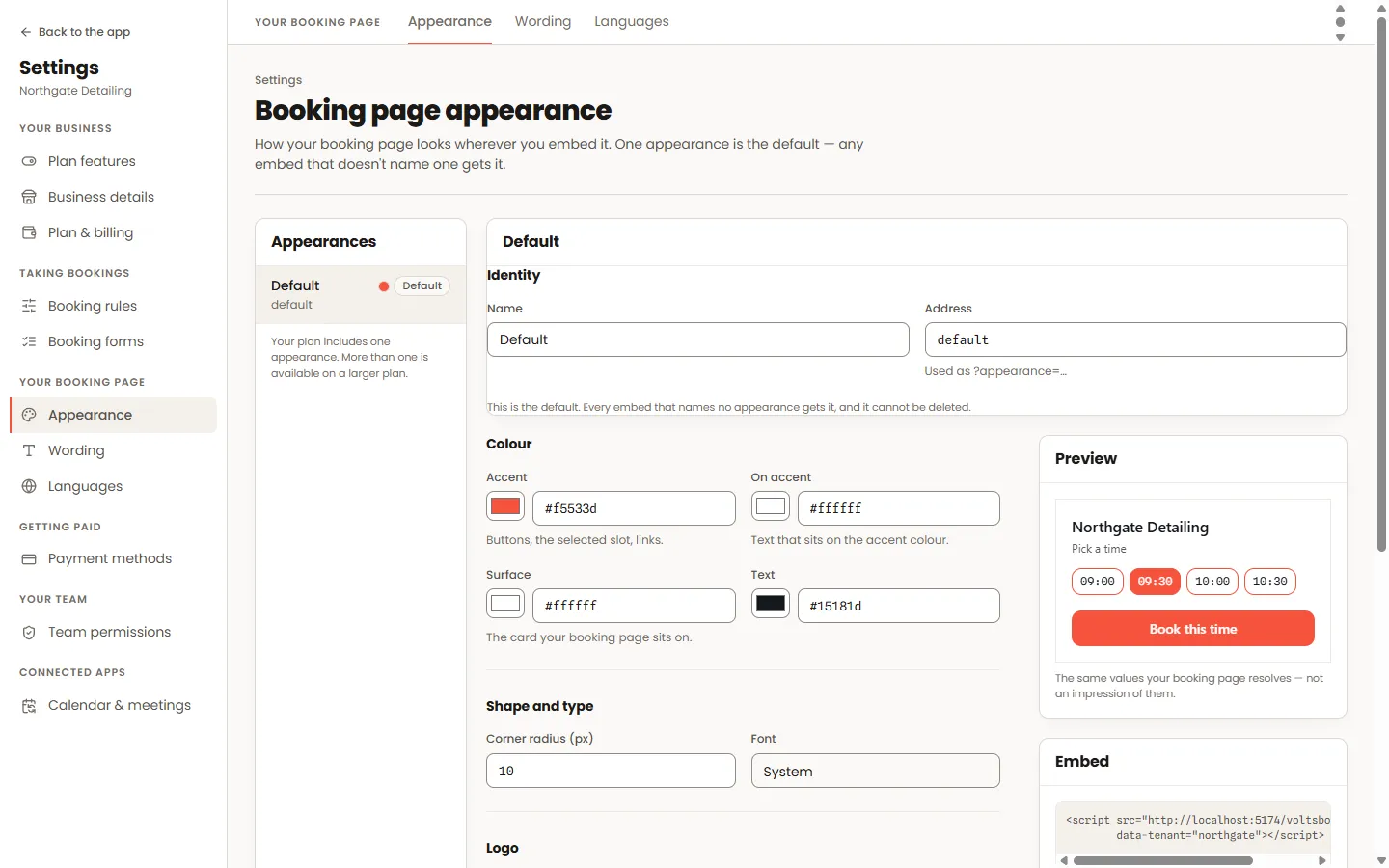
Settings → Booking rules can hide the location and staff steps (the page picks sensibly), hide addresses or remaining-slot counts, and switch between 12h and 24h times. Appearance controls colours and can carry several named looks.
- 04
Ask your own questions
Custom forms add questions to booking — required or conditional on the service chosen, including file uploads. Answers ride the appointment and can appear in your notifications.
Worth knowing
- The booking page speaks six languages; it follows the customer’s browser and everything you sell can carry translations.
- If bookings should require an account, switch on login-required booking — the page will ask customers to sign in first.