
- 01
Connect the person, then pick the calendar
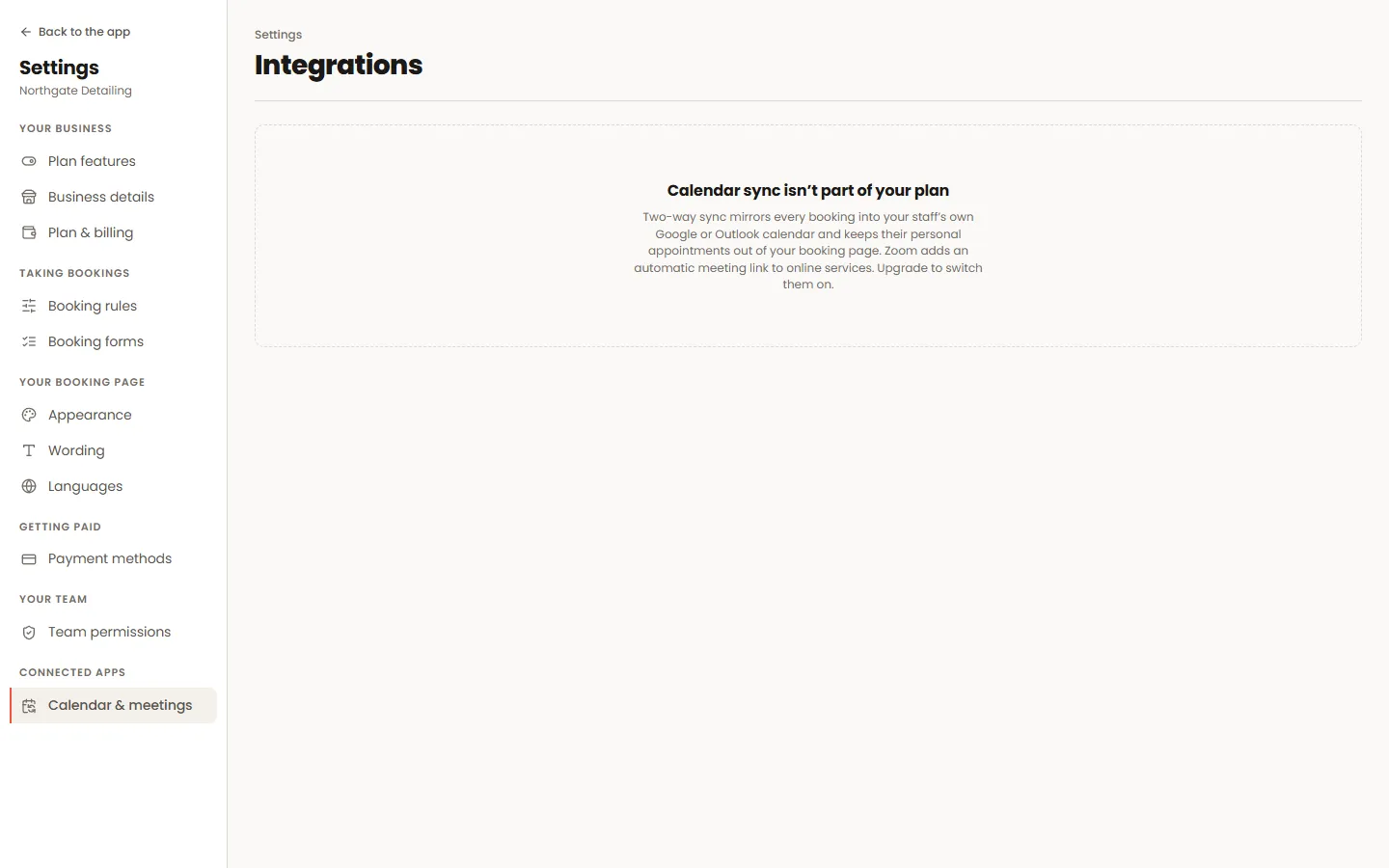
Connecting happens on a staff member’s own profile — Google or Outlook — and then you must choose WHICH calendar their bookings land in. Connecting alone does nothing; the calendar choice is what turns it on.
- 02
Decide what syncs
This screen controls which statuses sync, how far ahead, whether the customer is added as an attendee, and what the event title and description say. Switching sync on also pushes the bookings already in the diary.
- 03
Two-way, safely
Busy time in a connected calendar blocks those slots on your booking page. A booking never waits on Google to succeed — if the calendar is slow or down, the booking still goes through and the event catches up.
- 04
Video meetings
Zoom or Google Meet links can be created with the booking and included in the confirmation. A rescheduled appointment keeps the same link rather than invalidating one you already sent.
Worth knowing
- If events are not appearing, check a calendar was actually selected on the staff profile — that is the step most often missed.
- All-day events in a connected calendar are treated as dates, not as a 24-hour block in the wrong timezone.